Why Your Router's Admin Panel Refuses Outside Connections — And How to Access It Remotely Without Compromising Your Network
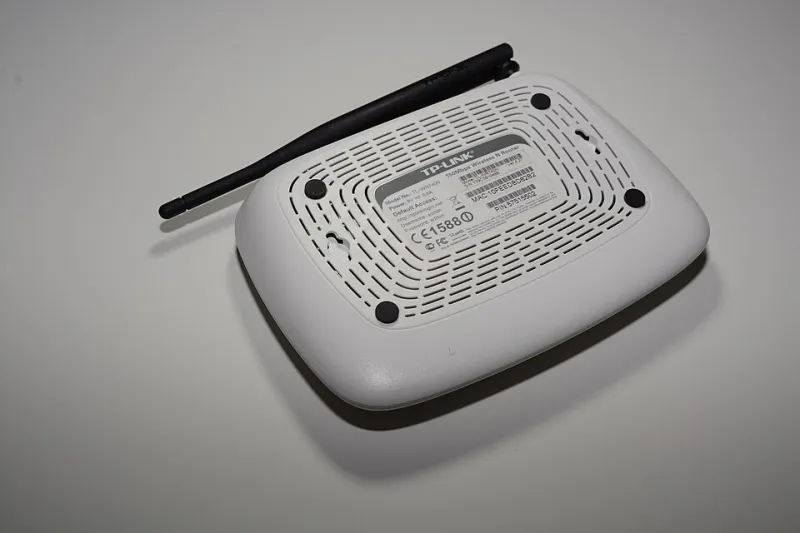
Photo: Darakshanehaluddin, CC0, via Wikimedia Commons
It is a situation that catches many users off guard. You are traveling, or working from a different location, and you need to check a setting on your home router — perhaps to verify a port forwarding rule, restart the device, or check which devices are connected. You open a browser, type in your router's IP address, and receive nothing. No login page. No response at all.
This is not a malfunction. It is your router working exactly as designed.
Understanding why remote access is blocked by default — and what your actual options are for getting around it safely — requires a look at both the underlying network architecture and the security trade-offs involved.
The Architecture Reason: Private Networks Are Deliberately Isolated
Your home router operates as the boundary between two fundamentally different network environments. On one side is your local area network (LAN) — the private space where your computers, phones, smart TVs, and other devices communicate. On the other side is the wide area network (WAN) — the public internet.
Your router's administrative interface, typically accessible at an address like 192.168.1.1 or 192.168.0.1, exists exclusively within the LAN. It is bound to your private IP address space, which is non-routable on the public internet by design. When you attempt to reach that address from an external network, your request arrives at a completely different IP address — the public-facing WAN IP assigned to your router by your ISP — and finds no corresponding service listening for it.
This separation is not accidental. RFC 1918, the internet standard that defines private address ranges, was specifically constructed to ensure that internal network resources remain inaccessible from the outside without explicit configuration to allow it.
The Security Reason: Open Admin Access Is a Significant Attack Surface
Beyond the architectural explanation, there is a more immediate security rationale for keeping admin access locked to the local network.
Router administrative panels control every meaningful aspect of your network: DNS settings, firewall rules, connected devices, port forwarding, wireless credentials, and in many cases, parental controls and traffic monitoring. An attacker who gains access to that interface effectively owns your network.
If remote admin access were enabled by default, your router's login page would be exposed to the entire internet — including automated scanning tools that probe millions of IP addresses per hour looking for exactly these kinds of open management interfaces. Even with a strong admin password, exposure to brute-force attacks, credential stuffing, and authentication bypass exploits increases substantially.
This is precisely why most router manufacturers ship their devices with remote management disabled, and why security professionals consistently recommend leaving it that way unless there is a specific, well-understood need.
What Happens When Users Enable Remote Management Without Precautions
Many routers do include a remote management option, typically found in the administration or advanced settings section of the admin panel. Enabling it opens a port on your router's WAN interface — commonly port 8080 or 443 — and allows login attempts from any IP address on the internet.
Without additional precautions, this configuration introduces several risks:
- Brute-force exposure: Any IP address can attempt to log in repeatedly unless rate limiting or lockout policies are in place.
- Firmware vulnerabilities: If your router's web interface has an unpatched security flaw, external exposure means that flaw is exploitable from anywhere in the world.
- Default credential exploitation: Routers still running default usernames and passwords become trivially compromised the moment remote access is enabled.
- Man-in-the-middle risk: Without HTTPS enforcement, login credentials transmitted over an unencrypted connection can be intercepted.
If remote management must be enabled, it should always be paired with a strong, unique admin password, HTTPS-only access, and where the router supports it, IP address whitelisting that restricts login attempts to known addresses.
Safe Alternatives That Provide Remote Access Without Direct Exposure
For users who genuinely need to manage their home network from a remote location, several approaches provide practical access while avoiding the risks of raw remote management.
Option 1: Manufacturer Remote Management Apps
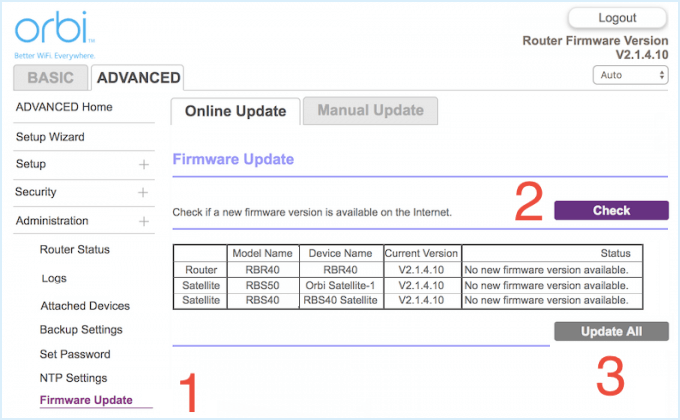
Many modern router manufacturers offer cloud-connected mobile applications that provide a controlled remote management experience. ASUS routers offer the ASUS Router app with remote access through ASUS's cloud infrastructure. TP-Link's Deco and Archer series use the Tether app with similar functionality. Netgear's Orbi and Nighthawk lines connect through the Netgear app.
These apps route your management session through the manufacturer's servers using encrypted connections, meaning your router does not need to expose an open port to the public internet. Authentication is handled through your app account credentials, and the router's WAN interface remains closed to direct external access.
The trade-off is a dependency on the manufacturer's cloud service remaining operational and a degree of trust placed in that third party. For most home users, this is an acceptable compromise.
Option 2: VPN Server on the Router
A more technically robust solution involves configuring a VPN server directly on your router. Many routers running stock firmware — and virtually all devices running DD-WRT or OpenWrt custom firmware — support OpenVPN or WireGuard server functionality.
With this setup, your remote device connects to the VPN server running on your home router. Once the VPN tunnel is established, your device is effectively operating as if it were on your home LAN. You can then access the router's admin panel at its local IP address exactly as you would from home.
This approach is considered the gold standard for remote home network access because:
- The VPN connection is encrypted end-to-end.
- No additional admin ports are exposed to the public internet.
- Access is gated by VPN credentials, which are separate from router admin credentials.
Setup requires assigning a consistent public IP or using a dynamic DNS (DDNS) service, and the initial configuration involves more steps than app-based solutions. However, for users comfortable with moderate network configuration, it is the most secure path available.
Option 3: Dynamic DNS Combined with Careful Port Management
For users whose ISPs assign dynamic (changing) public IP addresses, a Dynamic DNS service maps a consistent hostname to your router's current IP. Services such as No-IP, DynDNS, and DuckDNS integrate directly with many routers.
DDNS alone does not provide remote access — it simply ensures you can reliably reach your home IP regardless of how it changes. It is most useful as a component of a VPN setup rather than as a standalone solution.
Option 4: Third-Party Remote Access Platforms
Tools such as TeamViewer, AnyDesk, or Chrome Remote Desktop allow you to remotely control a computer that is physically located on your home network. While this does not provide direct router admin access, it allows you to use that home computer's browser to reach the router's local IP address — functionally achieving the same result.
This approach requires a home computer to remain powered on and running the remote access client, which is not always practical.
Choosing the Right Approach for Your Situation
The correct solution depends on how frequently you need remote access, your comfort level with network configuration, and how sensitive your home network environment is.
| Scenario | Recommended Approach |
|---|---|
| Occasional access, minimal setup | Manufacturer mobile app |
| Frequent access, security-conscious user | VPN server on router |
| Technical user, full control preferred | OpenVPN or WireGuard with DDNS |
| Non-technical user with a spare PC at home | Remote desktop to home computer |
The one approach that is difficult to recommend without significant caveats is enabling raw remote management without IP restrictions or additional authentication layers. The convenience it offers is real, but the exposure it creates is disproportionate to that convenience for most users.
Your router's admin panel is the control center for your entire home network. The restrictions that keep it off-limits from the outside world exist for sound reasons — and any method used to bridge that gap should be chosen with an equal measure of care.