Firmware Updated, Speeds Destroyed: How to Diagnose and Recover Your Router's Lost Performance
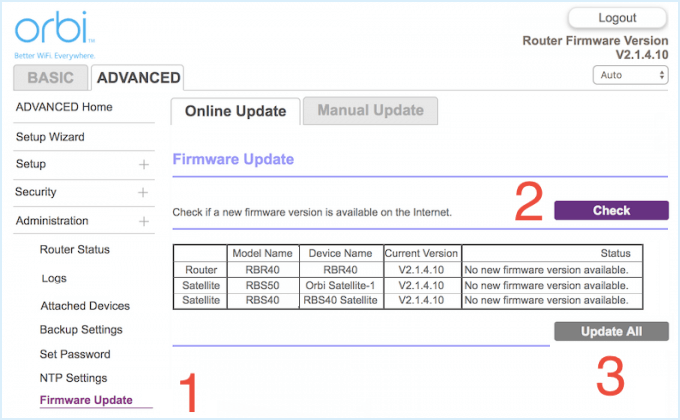
Photo: router firmware update network speed performance troubleshooting, via www.isumsoft.com
There are few things more frustrating than doing the responsible thing — updating your router's firmware — only to find that your internet speeds have nosedived within hours of the update completing. Video calls start buffering. Downloads crawl. Gaming latency spikes. And when you call your ISP, they tell you everything looks fine on their end.
They're not lying. The problem almost certainly isn't with your ISP's infrastructure. It's inside your router — specifically, in the way the new firmware interacted with your existing configuration. Understanding why this happens, and how to fix it without blowing away your entire network setup, is exactly what this guide is designed to help you do.
Why Firmware Updates Can Quietly Wreck Performance
Most users assume a firmware update is purely additive — new features get added, security patches get applied, and nothing breaks. In practice, firmware updates frequently reset or reconfigure certain internal settings to their factory defaults, even when the rest of your configuration appears intact.
This is not always disclosed in the update notes. Manufacturers sometimes make architectural changes between firmware versions that cause specific settings to revert silently. Unless you documented your configuration before updating — and most people don't — you may not even realize what changed.
Three categories of settings are most commonly affected.
QoS Rules That No Longer Apply
Quality of Service (QoS) is one of the most update-sensitive areas of any router configuration. QoS tells your router how to prioritize different types of traffic — for example, giving video streaming or VoIP calls precedence over large file downloads. When a firmware update ships with a revised QoS engine or changes the underlying traffic classification system, your old rules may be silently disabled, reset to defaults, or applied incorrectly.
The result is that bandwidth-heavy background tasks — cloud backups, operating system updates, peer-to-peer applications — can start competing equally with your active traffic. If your household relies on QoS to keep video calls smooth while someone else downloads large files, a reset here will be immediately noticeable.
To check this, log in to your router's admin panel and navigate to the QoS or traffic management section. Look for whether your rules are still present and whether the QoS feature itself is still enabled. On many routers, the toggle defaults to off after a major firmware revision.
Channel Bandwidth Resets and Wireless Interference
Another common culprit is the wireless radio configuration. Specifically, the channel width settings for your 2.4 GHz and 5 GHz bands.
Before the update, you may have manually configured your router to use a specific channel — say, channel 6 on 2.4 GHz — to avoid congestion from neighboring networks. You may also have set your 5 GHz band to operate at 80 MHz or 160 MHz channel width for maximum throughput. Firmware updates frequently reset these to "Auto," which sounds convenient but can result in your router selecting a congested channel or dropping to a narrower bandwidth.
Use a Wi-Fi analyzer app — tools like WiFi Analyzer on Android or the built-in Wireless Diagnostics utility on macOS — to scan your environment. If your router is now sharing a channel with three or four neighboring networks, that's a significant source of performance degradation that has nothing to do with your ISP.
Log back into your admin panel, navigate to your wireless settings, and manually reassign channels based on what the scan shows is least congested in your area.
Driver Conflicts and Hardware Acceleration
This one is less visible but equally damaging. Many modern routers use hardware acceleration — sometimes called NAT acceleration or flow cache — to offload packet processing from the main CPU to dedicated hardware. This dramatically increases throughput, especially on gigabit connections.
Some firmware updates disable hardware acceleration by default, either because of compatibility changes or because the new code introduces a bug that makes acceleration unstable. When this happens, your router's CPU handles every packet manually, and performance can drop substantially — sometimes by 30 to 50 percent on fast connections.
The location of this setting varies by manufacturer. On ASUS routers, look under LAN > Switch Control. On Netgear devices, it may appear under Advanced > Setup > WAN Setup. On TP-Link routers, check Advanced > NAT Forwarding. If you find hardware acceleration is disabled, re-enabling it may immediately restore your previous speeds.
Step-by-Step: Restoring Performance After a Firmware Update
Rather than jumping straight to a factory reset — which would force you to rebuild your entire network configuration from scratch — work through the following sequence first.
Step 1: Reboot the router after updating. This sounds obvious, but some firmware updates require a full power cycle to complete initialization. Unplug the power adapter, wait thirty seconds, and plug it back in.
Step 2: Run a wired speed test. Connect a laptop directly to your router via Ethernet and run a test at speedtest.net. This eliminates Wi-Fi variables and tells you whether the performance issue is in the router's core processing or limited to the wireless radios.
Step 3: Check QoS status. Log into your admin panel and confirm QoS is enabled and your rules are intact. If QoS was reset, disable it entirely as a test — sometimes a misconfigured QoS setup is worse than none at all.
Step 4: Audit your wireless channel settings. Review both bands and manually assign channels based on a current environment scan.
Step 5: Verify hardware acceleration. Locate the hardware acceleration or NAT offloading setting and confirm it is active.
Step 6: Check DNS settings. Some firmware updates reset the DNS server configuration to the ISP's default. If you were previously using a faster third-party DNS — such as Cloudflare's 1.1.1.1 or Google's 8.8.8.8 — check whether those settings were preserved.
Step 7: Review the manufacturer's release notes. Look up the exact firmware version that was installed and read the full changelog. Known performance issues are sometimes documented, and manufacturers occasionally release a follow-up patch within days of a problematic update.
When to Consider Rolling Back
If none of the above steps restore your performance, and the manufacturer's support forums show other users reporting the same issue with the same firmware version, rolling back to the previous firmware may be the most practical option. Most routers support manual firmware installation through the admin panel's update section. Download the previous version from the manufacturer's official support page and install it manually.
This should be treated as a temporary measure. Security patches included in the newer firmware are there for a reason, and running outdated firmware long-term introduces its own risks.
A Note on What Your ISP Can and Cannot See
When you contact your ISP about a speed issue, their diagnostic tools assess the signal quality and throughput between their infrastructure and your modem. They are generally not able to see — and are not responsible for — what happens inside your router. This is worth understanding not as a criticism of your ISP, but as a reminder that router-level problems require router-level solutions.
Keep a written or digital record of your router's key configuration settings before every firmware update. It takes five minutes and can save hours of troubleshooting after the fact.