The USB Port on Your Router Is a Small File Server You Never Meant to Run
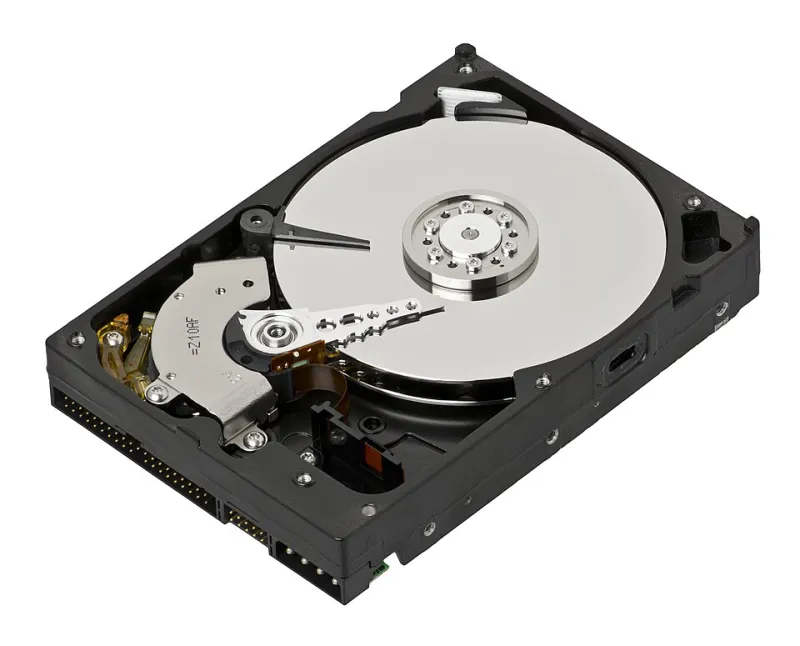
Photo: Evan-Amos, CC BY-SA 3.0, via Wikimedia Commons
A convenient port with a long shadow
The USB port on the back of a router looks like an afterthought. In practice, enabling it turns a modest piece of networking hardware into a small Linux server offering file shares, media streaming, and sometimes a print queue, all reachable by every device on the network.
That is genuinely useful. A household can centralize photo backups, give a smart television access to a movie library, or revive a perfectly good USB-only laser printer. The trouble is that the defaults on these services were chosen to make the first five minutes feel effortless, and effortless is not the same as private.
What the router is actually running
When you attach storage and enable sharing, the router typically starts one or more of the following:
- SMB, the Windows file-sharing protocol, usually implemented through a lightweight Samba build.
- FTP, sometimes with anonymous access enabled out of the box.
- DLNA or UPnP media server, which broadcasts your media library to any compatible player on the network.
- A print server, exposing a USB printer to Windows and macOS clients.
- A web-based file browser in the admin panel, occasionally reachable without re-authentication.
Each is a separate service with its own settings, and each has been the subject of its own family of vulnerabilities over the years. The router's processor is also modest, which matters later.
Read the defaults before you trust them
On a great many consumer routers, a newly enabled share is readable and writable by every device on the local network, with no username or password required. Some firmware extends that access to the guest network. FTP, when present, may accept anonymous logins by default. The media server indexes everything it can reach.
The pattern to watch for is a checkbox labeled something like Allow guest network access or Allow anonymous access, usually enabled. Turn both off unless you have a specific reason.
Configuring the share step by step
- Format the drive deliberately. Most routers handle NTFS read-write on modern firmware, some prefer ext4, and FAT32 caps individual files at four gigabytes. Decide before you copy anything important.
- Create a dedicated account. If the firmware supports share users, create one with a strong password. Reuse nothing from the admin account.
- Set folder permissions individually. Grant read-only to folders that only need to be consumed, such as a media library, and read-write only to the folder you actively back up to.
- Disable what you are not using. FTP off unless required. Media server off if no television or console needs it. Web file browser off if you always use a file manager.
- Deny guest network access. The guest network exists to keep visitors away from household resources; a share that ignores that boundary defeats the purpose.
- Check UPnP. Confirm the router has not automatically opened ports to the internet on behalf of the sharing service.
The printer case is different
Print servers are the most forgiving part of this feature and the least protected. Most offer no authentication at all: anyone who can reach the queue can print, and on many models can also cancel other people's jobs. Modern operating systems handle driverless printing well, but older printers may need vendor drivers on each machine.
Scanning is usually not supported over a router print server even when the printer can scan over USB to a directly connected computer. If scanning matters, this feature will disappoint you.
Three tests that tell you whether you are exposed
Test from the guest network. Connect a phone to the guest SSID and try to browse to the share by its address. A login prompt is acceptable; a list of folders is not.
Test from outside. With Wi-Fi off and cellular data on, attempt to reach the share using your home's public address. It should fail completely. If it does not, a port forward or UPnP rule is exposing the drive to the internet, which is among the more serious mistakes a home network can make.
Test the device list. Run a simple network scan from a laptop and note what the router advertises. A share broadcasting its presence through discovery protocols is visible to every device on the segment, including a compromised smart plug.
Performance, and the honest limits
Router USB sharing is a convenience feature, not network-attached storage. Expect throughput in the range of ten to thirty megabytes per second on USB 2.0 hardware, slower on encrypted shares, with the router's processor often the bottleneck. There is no redundancy, no snapshot capability, and no protection against a power loss during a write. Drives that spin down aggressively can drop off the network until the router reboots.
None of that disqualifies the feature. It does mean a drive attached this way should hold copies, not the only version of anything you would grieve over.
When to switch the whole thing off
Disable USB sharing entirely if the firmware no longer receives updates, if the only available configuration lacks per-user authentication, if the drive contains tax records, medical documents, or unencrypted photo backups, or if the household includes a rotating cast of devices you do not control. A dedicated NAS with real accounts and permissions, or a shared folder on a desktop that stays powered on, is a better home for anything sensitive.
Convenience is a fine reason to use the port. It should not be the only reason.