Why Your Router Admin Panel Keeps Timing Out — And How to Finally Fix It

Photo: Erik Calonius, Public domain, via Wikimedia Commons
You open a browser, type in your router's local IP address, enter the admin credentials, and begin navigating to the settings you need. Then, moments later, the interface refreshes to a login screen — and you are right back where you started. For users who manage their own network configurations, this pattern is one of the most consistently aggravating experiences in home networking.
Router admin panel timeouts are not random. They follow predictable logic, and understanding that logic is the first step toward eliminating the problem. More importantly, some of the causes behind persistent timeouts point to security configurations that deserve careful attention before they are modified.
Why Router Admin Sessions Time Out in the First Place
Router manufacturers implement session timeouts for a specific reason: security. The administrative interface of a router is the control center for the entire network. If a user logs in, walks away from their computer, and leaves the session open indefinitely, any person — or malicious software — that gains access to that browser could reconfigure the network without restriction.
The timeout mechanism is a safeguard. Most consumer routers default to session durations between two and five minutes of inactivity. Some enterprise-grade and prosumer models allow this to be extended through the admin panel itself, but many entry-level routers offer no such option, treating the default value as fixed.
This creates a practical tension: the security justification for short timeouts is legitimate, but the window is often too narrow for users who are reading documentation, cross-referencing settings, or simply moving slowly through an unfamiliar interface.
Common Causes Beyond Standard Inactivity Timers
Not every timeout is the result of the built-in session timer. Several other factors can produce identical symptoms and are frequently misdiagnosed.
Browser Interference
Modern browsers — particularly Chrome and Firefox — apply aggressive caching, cookie management, and security policies that can disrupt router admin sessions. Privacy-focused browser extensions, ad blockers, and script blockers sometimes prevent the session cookies that the router's interface depends on from functioning correctly. The result is a login that appears to succeed but drops unexpectedly within seconds.
Testing the admin panel in a private or incognito browsing window is a useful diagnostic step. If the session remains stable in incognito mode but not in a standard window, a browser extension is the likely culprit.
IP Address Conflicts
If the router's local IP address is being contested by another device on the network — a condition that can arise from misconfigured DHCP settings or static IP assignments — the admin session may drop as network traffic is misdirected. Running a quick network scan or checking the router's connected device list can reveal whether an IP conflict exists.
Firmware Bugs
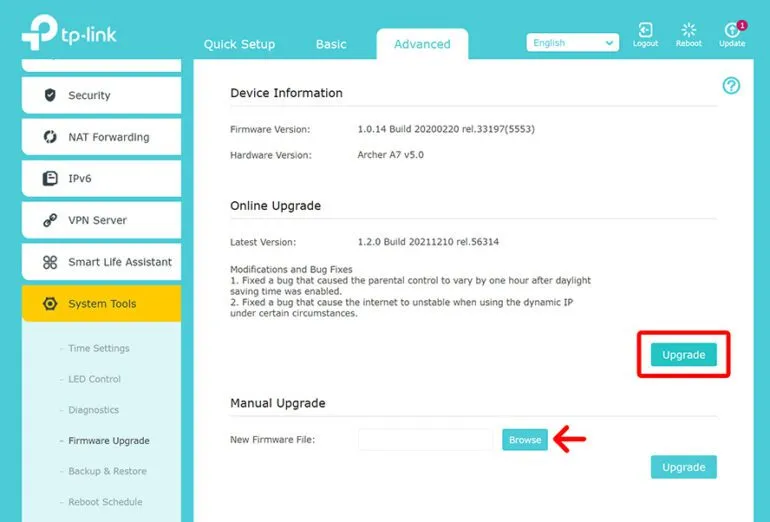
Certain router firmware versions contain session management bugs that cause premature logouts regardless of activity level. This is more common in routers that have not received updates in an extended period. Reviewing the manufacturer's release notes for the current firmware version often reveals whether known session issues have been documented and subsequently patched.
Multiple Concurrent Sessions
Some routers enforce a single-session policy on the admin interface. If another device on the network — a smartphone, a tablet, or a second computer — has the admin panel open simultaneously, the router may terminate one or both sessions. Confirming that no other device is accessing the admin interface before beginning a configuration session can resolve this issue immediately.
Brand-Specific Behavior and Where to Find Timeout Settings
Different manufacturers handle admin session management in meaningfully different ways.
ASUS routers typically expose a session timeout setting within the Administration section of the admin panel, often labeled as "Logout Timer" or similar. Values can generally be extended to thirty minutes or more.
NETGEAR routers vary by product line. The Nighthawk series and higher-tier models often include a configurable idle timeout under the Advanced settings menu. Budget-tier NETGEAR models may not offer this option.
TP-Link routers, particularly those running the newer Tether-integrated firmware, manage sessions through both the web interface and the companion mobile application. Users who prefer browser-based access should navigate to System Tools or Administration to locate timeout controls.
Linksys routers running the current firmware generation typically default to short timeouts with limited user-facing controls. Linksys support documentation recommends keeping the admin session active by periodically interacting with the interface rather than leaving it idle.
Eero and Google Nest routers have largely moved away from traditional browser-based admin panels in favor of mobile applications, which manage session persistence differently and generally do not exhibit the same timeout behavior.
Troubleshooting Steps in Sequence
For users experiencing persistent timeouts, the following sequence addresses the most probable causes in order of likelihood and ease of resolution.
-
Clear browser cache and cookies, then attempt to log in again. Stale session data is a frequent and easily resolved culprit.
-
Disable browser extensions temporarily. Use an incognito window to test whether the session remains stable without extensions active.
-
Try a different browser entirely. If the session holds in one browser but not another, the issue is browser-specific rather than router-specific.
-
Connect via ethernet rather than WiFi. Wireless connections introduce latency and occasional packet loss that can disrupt admin sessions. A wired connection to the router during configuration is both more stable and more secure.
-
Check for concurrent sessions by reviewing other devices on the network. Ask household members whether they have the admin panel open, and close any such sessions before proceeding.
-
Review available firmware updates. If the router has not been updated recently, a firmware revision may address known session management issues. Access the firmware update section through the admin panel — quickly, before the session expires — or use the manufacturer's mobile application if one is available.
-
Locate and adjust the session timeout setting within the admin panel's administration or management section. Extending this value to fifteen or thirty minutes provides substantially more working time without meaningfully compromising security in most home environments.
When the Admin Panel Remains Inaccessible
In cases where the timeout occurs so rapidly that completing any configuration task is effectively impossible, a factory reset may be warranted. This restores the router to its default firmware state, eliminating firmware corruption or misconfiguration as contributing factors. After a reset, accessing the admin panel and immediately adjusting the session timeout — before making any other changes — establishes a more manageable working environment.
Users who find themselves locked out entirely, rather than simply timed out, should consult the router's physical reset procedure, typically involving a recessed button on the device's exterior held for ten to thirty seconds.
A Note on Security Trade-offs
Extending or disabling a router's admin session timeout does reduce one layer of protection. It is worth emphasizing that this adjustment should be accompanied by responsible browsing habits: closing the admin panel entirely when not in active use, avoiding router configuration on shared or public computers, and ensuring the admin password itself is strong and unique. The timeout is a compensating control for weak session hygiene — if session hygiene is strong, the impact of extending the timeout is minimal.
Managing a home network effectively requires access to the tools that control it. A router admin panel that locks users out before they can accomplish anything is not serving its intended purpose. With the right diagnostic approach and a measured adjustment to session settings, this particular frustration is entirely solvable.