Router Firmware: The Silent Security Layer You're Probably Neglecting
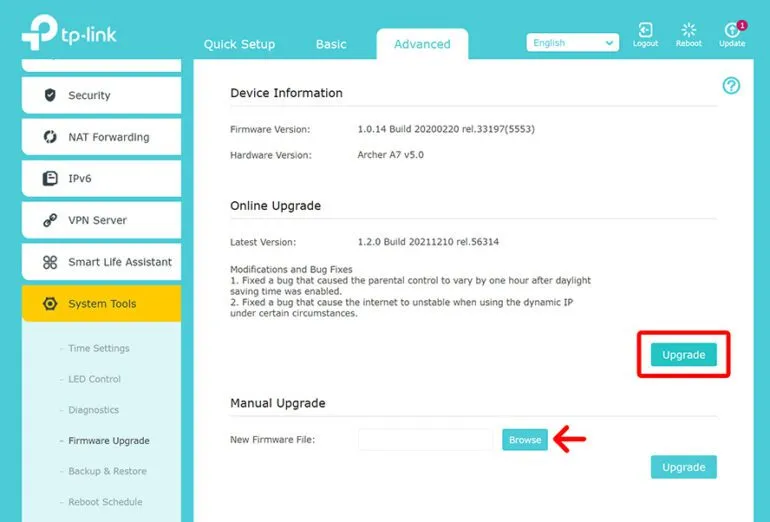
Photo: router firmware update security network protection home, via www.hellotech.com
Consider for a moment how diligently most people update their smartphones. Operating system notifications appear, and within a day or two the update is installed. The same behavior applies to laptops, smart TVs, and even game consoles. Yet the device managing all of that internet traffic — the router sitting quietly in the corner — is frequently running firmware that hasn't been touched since it came out of the box.
This isn't a minor oversight. Router firmware vulnerabilities have been exploited in documented, real-world attacks affecting hundreds of thousands of American households. Understanding what firmware updates actually do, and how to apply them without incident, is one of the most impactful steps a home user can take to protect their network.
What Router Firmware Actually Is
Firmware is the low-level software permanently stored inside your router's hardware. Unlike the apps on your phone, it doesn't sit on a removable storage medium — it's embedded in the device itself and governs everything from how the router processes network traffic to how it authenticates users logging into its admin panel.
Manufacturers release firmware updates for several reasons: to patch newly discovered security vulnerabilities, to improve compatibility with modern devices and protocols, to fix bugs that cause crashes or performance degradation, and occasionally to introduce new features. Security patches, however, represent the most urgent category.
Real Vulnerabilities That Firmware Patches Have Fixed
The case for keeping firmware current isn't theoretical. In 2018, the FBI issued a public advisory warning that a sophisticated piece of malware called VPNFilter had infected more than 500,000 routers across the United States and 54 other countries. The malware was capable of intercepting network traffic, harvesting credentials, and rendering infected devices permanently inoperable. Several of the vulnerabilities it exploited had been addressed in firmware updates that affected users had never applied.
In 2021, a critical vulnerability designated CVE-2021-20090 was disclosed affecting multiple router models from brands including Arcadyan, Buffalo, and several others. The flaw allowed unauthenticated attackers to bypass login protections entirely — effectively granting full administrative access to any router running the vulnerable firmware version. Patches were available; the problem was that most users had no idea the vulnerability existed and had taken no action.
More recently, Netgear and Asus have each issued emergency firmware releases addressing remotely exploitable flaws that required no interaction from the device owner to trigger. In each case, the fix was a firmware update. The risk, for those who delayed, was complete compromise of their home network.
Why Most Users Never Update
Router manufacturers bear some responsibility here. Unlike smartphones, most routers do not push automatic update notifications to users. The firmware update process requires logging into the admin panel, navigating to the correct menu, and either downloading a file manually or initiating an online check — steps that feel unfamiliar to users who rarely interact with their router's interface.
Additionally, many users harbor a reasonable fear: the concern that a firmware update might permanently disable, or "brick," their device. While this risk is not zero, it is far smaller than commonly believed — provided the update is performed correctly.
How to Update Your Router's Firmware Safely
The following procedure applies broadly across major router brands including TP-Link, Netgear, Asus, and Linksys. Specific menu names will vary by model, but the general sequence is consistent.
Step 1: Access Your Router's Admin Panel
Open a web browser on a device connected to your home network and enter your router's default gateway address into the address bar. This is typically 192.168.1.1 or 192.168.0.1 for most consumer routers. Log in using your administrator credentials.
Step 2: Record Your Current Settings
Before proceeding, take a few minutes to document your current configuration. Note your WiFi network names (SSIDs), security type, and any custom DNS servers or port forwarding rules you've configured. Some firmware updates reset devices to factory defaults, and having this information recorded will save considerable time if a reset occurs.
Step 3: Use a Wired Connection
This step is non-negotiable. Connect your computer to the router using an Ethernet cable before initiating the update. If the WiFi connection drops mid-update — which can happen — the process will be interrupted, and an incomplete firmware installation is the most common cause of a bricked device.
Step 4: Locate the Firmware Update Menu
On TP-Link routers, navigate to Advanced > System Tools > Firmware Upgrade. On Netgear devices, go to Advanced > Administration > Firmware Update. On Asus routers, find the option under Administration > Firmware Upgrade. Linksys users should look under Connectivity > Router Firmware Update.
Step 5: Check for Updates Online or Download Manually
Many modern routers offer a one-click "Check for Updates" button that retrieves the latest firmware directly from the manufacturer's servers. This is the preferred method when available, as it eliminates the risk of installing an incorrect file.
If your router requires a manual download, visit the manufacturer's official support website, search for your exact model number, and download only from that official source. Never use third-party sites to obtain firmware files.
Step 6: Apply the Update and Wait
Initiate the update and do not interrupt the process. Do not close the browser tab, unplug the router, or allow your computer to sleep during the update. The process typically takes between two and five minutes. The router will reboot automatically when complete.
Step 7: Verify and Reconfigure if Necessary
After the router restarts, log back into the admin panel and confirm the firmware version has changed. Check that your WiFi networks are functioning and review your settings to ensure nothing was reset.
Establishing an Ongoing Update Habit
Security researchers regularly discover new vulnerabilities, and manufacturers issue patches in response. Checking for firmware updates every three months is a reasonable minimum cadence for most home users. Some routers — particularly newer models from Asus, Netgear, and TP-Link — offer automatic update features that can be enabled in the administration settings. Enabling this option removes the need to remember manual checks entirely.
Your router is the gateway through which every connected device in your home communicates with the internet. Keeping its firmware current is not a technical luxury reserved for IT professionals — it is a fundamental practice that belongs on every homeowner's routine maintenance checklist.