New Address, Old Router: The Hidden Baggage Your Network Carries When You Move
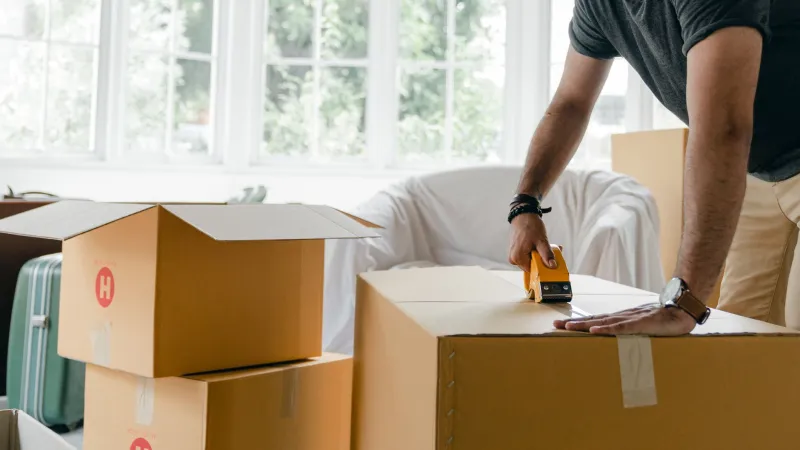
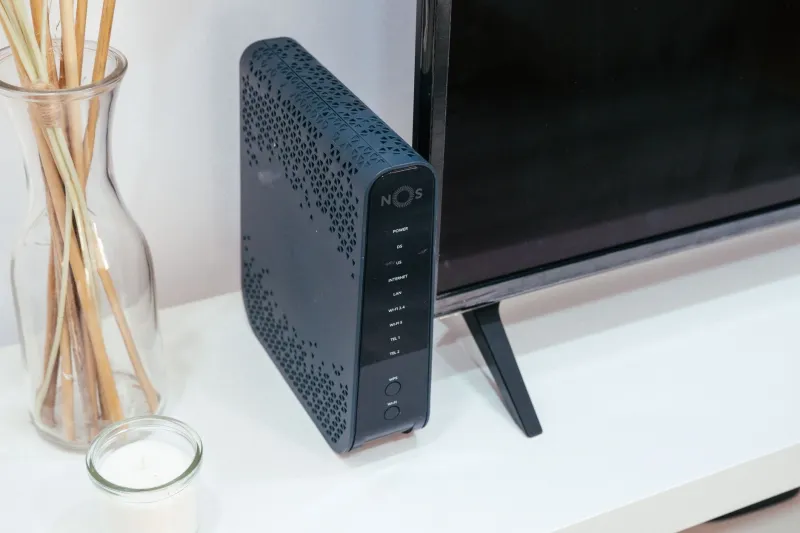
Moving to a new home involves a long list of logistical decisions, and the router rarely ranks high on any of them. Most people simply unplug it, toss it in a box with the charging cables, and set it up in the new living room once the utilities are connected. It works — usually. But the router that served you faithfully at your old address carries more baggage than you might expect, and some of it can affect both the performance and the security of your new network.
What Your Router Remembers (Even After You Forget)
A consumer router is essentially a small computer with persistent memory. Every setting you've changed over the years — and every setting your ISP or the manufacturer set by default — remains stored until you actively erase it. When you relocate, several categories of old configuration follow you through the front door:
Stale ISP settings. If your previous provider used PPPoE credentials, VLAN tags, or a specific MAC address registration, those settings may conflict with your new provider's requirements. A router configured for Comcast's Xfinity service won't necessarily negotiate cleanly with an AT&T fiber gateway or a Spectrum modem without adjustment.
Forgotten port forwards. That port forwarding rule you set up three years ago for a gaming console or a home security camera? It's still active. In your new home, those open doors point at devices that may no longer exist — or worse, at new devices that inherit exposed pathways you never intended to create.
Old DNS entries and static routes. Custom DNS servers you configured for a previous ISP, or static routes set up for a work-from-home setup that's since ended, can cause intermittent and baffling connectivity problems that are miserable to diagnose.
Saved device reservations. DHCP reservations tied to MAC addresses of devices you no longer own clutter the configuration table and occasionally cause address conflicts.
The Channel Congestion Problem
Even a perfectly configured router faces a new challenge in a new location: your neighbors. In a densely populated apartment complex or suburban subdivision, the 2.4 GHz band in particular can be crowded with overlapping networks. Your old router may be set to a fixed channel that was ideal at your previous address but lands directly on top of three neighbors' networks at the new one.
If your router is configured to select channels automatically, this is largely self-correcting — though automatic selection is far from perfect. If you (or a technician) ever locked in a specific channel, check the wireless settings after your move and either switch to auto or run a Wi-Fi analyzer app to find the clearest channel in your new environment.
Why a Fresh Start Beats Selective Editing
You could, in theory, audit every setting and update them one by one. In practice, few people do, and the ones they miss tend to be the ones that matter. A factory reset followed by a deliberate reconfiguration takes less time than most people assume — typically 30 to 60 minutes — and guarantees that nothing inherited from the old address survives.
The Fresh Start Checklist
Follow this sequence after your move (or before, if you plan ahead):
-
Back up anything worth keeping. Screenshot your current Wi-Fi name and password if household members have them memorized and you want to keep them. Export a configuration backup file from the admin panel if your router supports it, just in case.
-
Perform a factory reset. Hold the reset button (usually a recessed pinhole) for 10–30 seconds until the lights blink. This erases every custom setting, including passwords, port forwards, and ISP credentials.
-
Connect to the default network. Use the credentials printed on the router's label to join the factory-default Wi-Fi or connect via Ethernet, then log in to the admin panel at the router's default IP address.
-
Update the firmware first. Before configuring anything else, install the latest firmware. This closes known vulnerabilities and ensures you're configuring against current features.
-
Change the admin password. The default administrator credentials are public knowledge. Set a strong, unique admin password before doing anything else.
-
Enter your new ISP's connection settings. Follow your new provider's setup instructions. Cable providers often require modem activation or MAC registration; fiber installations may involve a technician-provided gateway in bridge mode.
-
Create a new network name and password. Resist the temptation to reuse your old SSID and password. A new name prevents your devices from auto-reconnecting to a network that no longer exists (and any neighbor's similarly named network from causing confusion), and a fresh password resets access for anyone who learned the old one.
-
Audit security features. Confirm WPA2 or WPA3 encryption is enabled, disable WPS, turn off remote administration unless you genuinely need it, and verify no UPnP surprises are left open.
-
Rebuild intentionally. Reconnect devices one at a time. Set up a guest network if you host visitors. Recreate any parental controls or quality-of-service rules to fit your new household's needs.
-
Label and document. Write down the admin password, Wi-Fi credentials, and router model. Future you — or the next tenant, if you leave the router behind — will thank you.
When the Router Shouldn't Make the Move
One final consideration: if your router is more than five or six years old, a move is the natural point to replace it. Older units may lack support for Wi-Fi 6, modern WPA3 security, and the bandwidth your new ISP plan likely offers. If your new home comes with a faster connection, an aging router can become the bottleneck that keeps you from ever seeing the speeds you're paying for.
A new address deserves a network built for it, not one patched together from the leftovers of the last one. An hour of reconfiguration on moving weekend pays off in faster speeds, fewer mysteries, and no open doors left behind from a house you no longer live in.