The Boxes Are Unpacked, but Your Network Shouldn't Inherit the Last Tenant's History
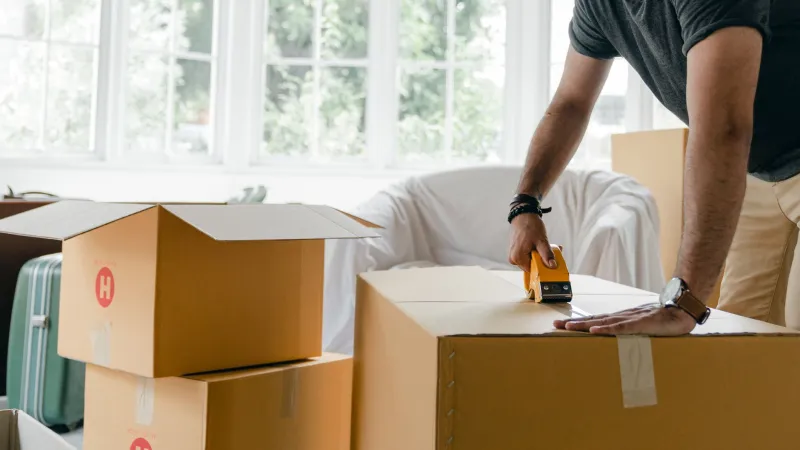
Moving into a new home across the United States — whether it's a rowhouse in Philadelphia or a ranch-style home in Phoenix — comes with a long list of unknowns. One of the most overlooked: the network equipment already waiting inside. If the previous occupants left behind a router, or if you're bringing your own device into an unfamiliar space, the setup decisions you make on day one will shape your connection for months to come.
Start With a Full Reset, Not a Fresh Password
It may be tempting to simply change the network name and move on, but a used router can carry more than a previous owner's Wi-Fi password. Port forwarding rules, DNS settings, scheduled reboots, and even unknown administrator accounts can all survive a simple credential change.
The safest approach is a factory reset before the device touches your new internet connection:
- Plug the router in and let it boot fully.
- Locate the recessed reset button, usually on the back panel.
- Press and hold it with a paperclip for 10 to 30 seconds, depending on the manufacturer.
- Wait for the indicator lights to cycle, signaling the device has returned to factory defaults.
Once reset, the router will broadcast its default network name — a blank canvas with none of the previous tenant's configuration attached.
Claim the Admin Panel Before Anything Else
After a reset, the router reverts to its default administrator credentials, which are publicly documented for virtually every make and model. Before you do anything else, log in and replace that password with something unique — ideally a passphrase stored in a password manager rather than on a sticky note near the device.
While you're in the admin panel, take a moment to verify a few settings that are easy to overlook:
- Remote management: Confirm that administrative access from outside your network is disabled unless you specifically need it.
- Firmware version: Note whether an update is pending; you'll address this next.
- Network name: Choose an SSID that doesn't broadcast your home address, unit number, or family name.
Update Firmware While the House Is Quiet
A router that sat in a closet for months, or one you carried from your previous address, is almost certainly behind on firmware. Manufacturers release these updates to patch security vulnerabilities and resolve performance issues — and moving day is the ideal time to install them, before dozens of devices depend on the connection.
Check for updates through the admin interface, or if the router requires a manual download, visit the manufacturer's support page directly. Avoid third-party download sites. Let the update complete without interruption; pulling power mid-flash can render the device unusable.
Read the New Floor Plan Before You Mount Anything
Every home handles radio signals differently. Plaster walls, brick chimneys, and metal ductwork common in older American housing stock can all attenuate a Wi-Fi signal far more than drywall does. Rather than defaulting to where the previous tenant's equipment sat, spend a little time mapping the space.
A few principles that translate well across most homes:
- Centralize when possible. A router in a living room closet at one end of the house will struggle to reach bedrooms at the other.
- Elevate the device. A shelf several feet off the floor generally outperforms a cabinet at ankle height.
- Mind the interference. Microwaves, baby monitors, and Bluetooth devices can crowd the 2.4 GHz band, so keep the router away from major appliances.
- Test before committing. Walk through the house with a phone running a speed test before drilling holes or mounting brackets.
In larger homes or those with multiple floors, this is also the moment to decide whether a single router will suffice or whether a mesh system is worth the investment.
Verify What Your ISP Is Providing
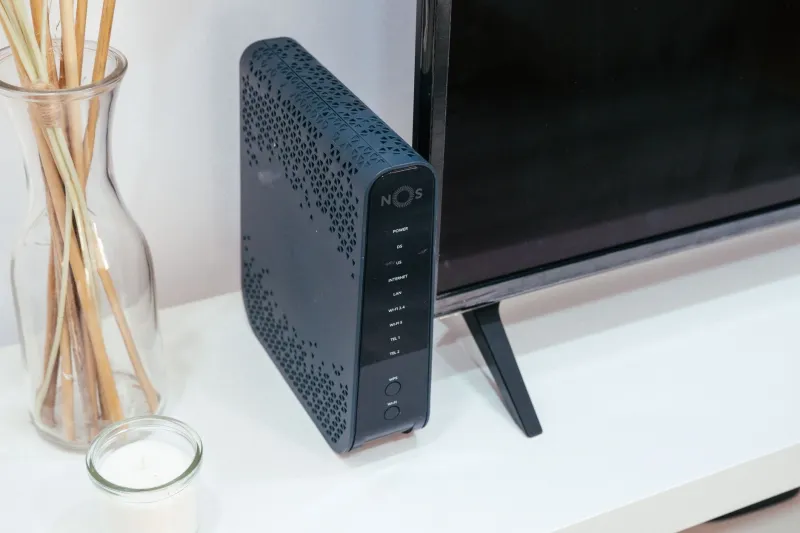
Many American households discover after moving that their new internet service came with a combination modem-router gateway from the provider. If you're using your own router, you'll want the gateway set to bridge or passthrough mode to avoid a double network address translation, which can complicate gaming, video calls, and port-based applications.
Call your provider or check your account portal to confirm which mode the gateway is in, and make sure your service is fully activated before troubleshooting speeds. Activation delays are common during peak moving months in late spring and summer, and no amount of router configuration will compensate for a line that hasn't been provisioned yet.
A Final Walkthrough Before You Call It Done
Once the network is live, take fifteen minutes to confirm the essentials: every device connects to the new network name, the guest network is enabled if you plan to use one, and the admin credentials are stored somewhere safe. It's also worth noting your new public IP behavior — some ISPs assign dynamic addresses that change periodically, which matters if you work remotely.
A new home offers a rare opportunity: a network with no inherited baggage, configured deliberately from the first login. Handle the setup carefully now, and you'll spend the months ahead enjoying the connection rather than troubleshooting it.