The 8 PM Squeeze: Why Your Router Buckles When Every Device in the House Wakes Up

It happens like clockwork in households across the country. Around 8 in the evening, dinner is done, homework is finished, and suddenly the whole family goes online at once. One person starts a 4K movie on the living room TV, a teenager fires up the game console, a video call is running on a laptop, and the security cameras in the driveway keep uploading footage in the background. Then the inevitable complaint: the Wi-Fi is broken.
It usually isn't broken. It's overloaded — and understanding why that peak-hour congestion happens is the first step toward fixing it.
The Router Is a Traffic Controller, Not a Highway
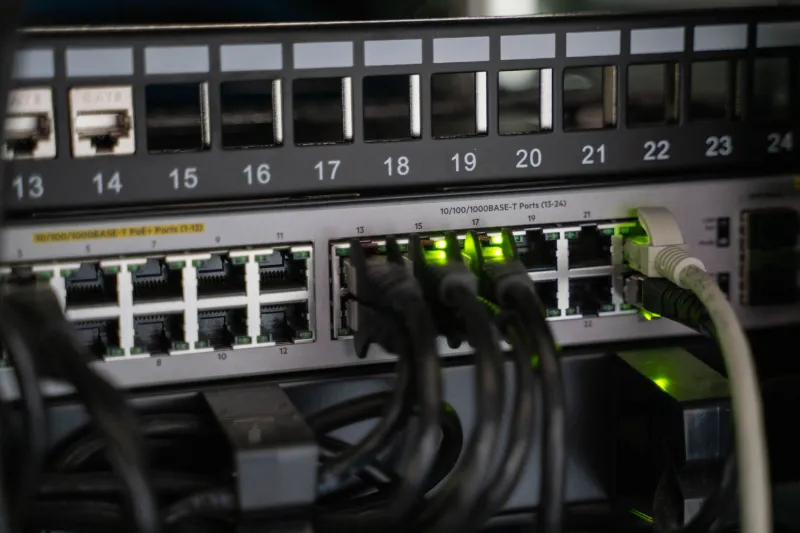
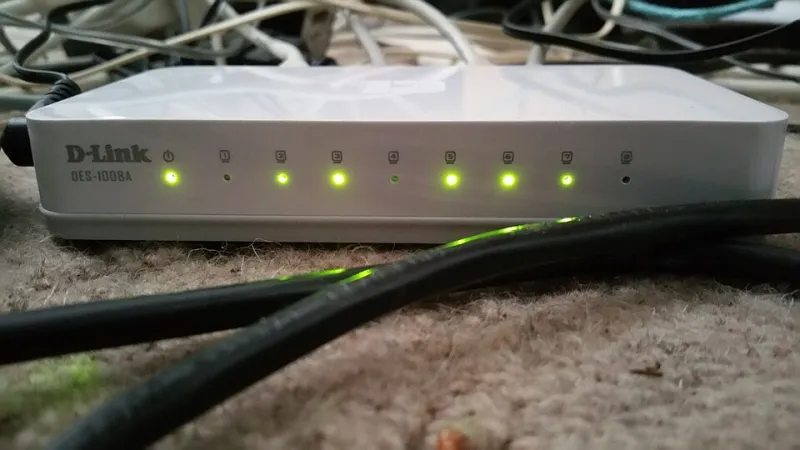
Think of your router less like a pipe and more like an air traffic controller. Every device in your home is requesting slots of attention, and the router has to juggle them. Consumer-grade routers — especially the one your ISP handed out with your internet plan — often have modest processors and limited memory. When a handful of devices are active, they cope fine. When fifteen or twenty connections light up simultaneously, the controller starts dropping packets.
Dropped packets don't just mean slower downloads. For real-time traffic like video calls and online gaming, they mean stuttering, freezing, and dropped calls, even when your speed test says everything looks fine.
Why the Evening Is the Worst Time
Two forces collide at peak household hours. First, your own devices are all active at once — streaming boxes alone can consume 25 Mbps or more for a 4K stream, and multiple simultaneous streams can saturate a 100 Mbps connection faster than you'd expect.
Second, your neighbors are online too. In dense suburban developments and apartment complexes across the US, the 2.4 GHz band in particular becomes a crowded parking lot of overlapping networks in the evening. Your router has to compete for clean airwaves, which means retransmissions, interference, and latency spikes that no amount of raw internet speed can fix.
Use QoS to Decide What Matters
Quality of Service (QoS) is the single most powerful setting most households never touch. Found in your router's admin panel — typically accessible at its gateway address through a browser — QoS lets you tell the router which traffic types matter most.
A sensible priority order for most families looks like this:
- Video conferencing and Wi-Fi calling — a dropped work call has real consequences
- Online gaming — latency-sensitive, though it uses surprisingly little bandwidth
- Streaming video — bandwidth-hungry but tolerant of brief delays
- Smart home devices — thermostats and bulbs use trivial amounts of data and can wait
- Downloads and cloud backups — important, but almost never urgent
Many modern routers offer application-based QoS, so you can simply mark video calls as high priority without hunting for individual device IP addresses. Older or ISP-issued gateways may only offer device-based prioritization, which still works — just assign your laptop and work phone to the top tier.
Band Steering: Get Devices Off the Crowded Freeway
Most routers today broadcast two bands: 2.4 GHz and 5 GHz. The 2.4 GHz band travels farther but is slow, congested, and shared with microwaves, baby monitors, and every neighbor's network. The 5 GHz band is faster and cleaner but has shorter range.
Band steering nudges capable devices toward 5 GHz automatically. If your router calls this feature something like "Smart Connect," it's often enabled by default — but not always. Log into your admin panel and check. Better still, consider manually splitting your network into two SSIDs (one per band) and assigning bandwidth-hungry devices like streaming boxes and consoles directly to 5 GHz. It's less elegant, but it gives you precise control.
Don't Forget the Always-On Devices
Security cameras deserve special mention. A single 1080p camera uploading to the cloud continuously can consume 2–5 Mbps around the clock, and a four-camera setup adds up quickly. Place cameras on the lowest QoS tier and, if your router supports it, consider scheduling their uploads or limiting their resolution in the camera app itself.
Smart speakers, thermostats, and light bulbs are rarely the problem individually — but a house with thirty such devices creates constant background chatter that adds router CPU load even when bandwidth usage is minimal. If your router is more than five or six years old, that cumulative load alone may justify an upgrade.
When Settings Aren't Enough
If you've enabled QoS, steered devices to 5 GHz, and the 8 PM squeeze persists, look at the hardware itself. Routers have finite concurrent connection limits, and budget models can genuinely choke past twenty or thirty active clients. A mid-range Wi-Fi 6 router — widely available from US retailers for $100–200 — handles dense device environments dramatically better than anything made before 2019.
Peak-hour congestion feels like a mystery, but it's really an accounting problem: too many demands on a limited resource. A few minutes in your router's settings, prioritizing what matters and clearing the crowded 2.4 GHz band, is often all it takes to keep the movie playing and the call connected — even when the whole house comes online at once.