Seven Router Settings Most Users Never Touch — And Why They're Wrecking Your WiFi
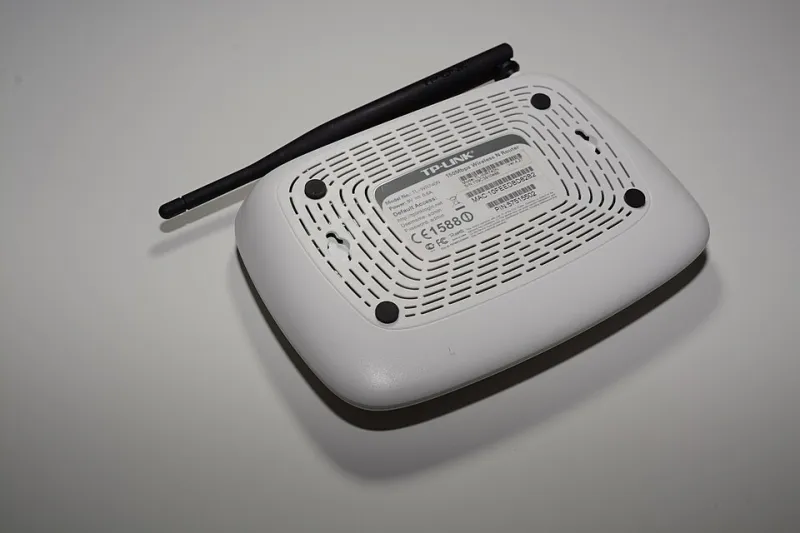
Photo: Hayden Schiff, CC BY 4.0, via Wikimedia Commons
Few technical frustrations match the aggravation of a WiFi connection that drops without warning. You restart the router, wait a moment, reconnect — and twenty minutes later the same thing happens again. If this cycle sounds familiar, the problem likely isn't a faulty device or your internet service provider. More often than not, it traces back to configuration settings buried inside your router's admin panel that most users never open.
This guide examines seven specific settings — found across popular router brands including TP-Link, Netgear, and Asus — that frequently cause intermittent disconnections when left at their defaults.
1. Band Steering: Helpful Feature or Hidden Liability?
Band steering is designed to automatically push devices onto the 5 GHz band when they come within range, prioritizing speed over distance. In theory, this sounds beneficial. In practice, it can cause devices to lose their connection entirely when they drift to the edge of the 5 GHz signal — which has a considerably shorter range than 2.4 GHz.
On Asus routers, band steering is found under Wireless > Professional. On Netgear Nighthawk models, look for Smart Connect under the wireless settings menu. If you have devices that move around your home — laptops, phones, tablets — consider disabling band steering and manually assigning devices to the appropriate band based on their typical location.
2. Transmit Power: More Isn't Always Better
Most routers ship with transmit power set to either "Auto" or the maximum available level. Counterintuitively, running at full power can actually worsen connectivity in smaller spaces. When the signal is too strong, nearby devices struggle to communicate back to the router effectively — a phenomenon sometimes called "near-far" interference.
TP-Link Archer routers expose this setting under Wireless > Advanced Wireless Settings, where you can select from High, Middle, or Low power levels. For apartments or single-floor homes under 1,500 square feet, reducing transmit power to medium can meaningfully reduce dropped connections.
3. Channel Width on the 2.4 GHz Band
The 2.4 GHz frequency band is already congested in most American neighborhoods, especially in urban areas where dozens of nearby networks compete for the same limited spectrum. Setting your 2.4 GHz channel width to 40 MHz instead of the recommended 20 MHz effectively doubles the bandwidth your router occupies — increasing the likelihood of interference from neighboring networks.
For the 2.4 GHz band specifically, a 20 MHz channel width is almost always the more stable choice. You'll find this option on Netgear routers under Advanced > Wireless Settings, and on TP-Link devices under Wireless > Wireless Settings.
4. Wireless Channel Selection
Leaving your router on "Auto" channel selection means it picks a channel at startup and rarely revisits that choice. If a new neighbor's router later moves onto the same channel, your connection degrades — and your router may not reselect automatically.
For the 2.4 GHz band, channels 1, 6, and 11 are the only non-overlapping options in the United States. Use a free tool like WiFi Analyzer (available on Android and Windows) to identify which channel has the least traffic in your area, then manually assign that channel in your router's admin panel.
5. DTIM Interval and Beacon Interval
These two settings control how frequently your router broadcasts its presence and how often it wakes sleeping devices to deliver buffered data. The default beacon interval is typically 100ms, and the DTIM interval is set to 1 or 2. While these defaults work for most scenarios, mobile devices in particular can behave erratically if these values are set too high — leading to delayed reconnections that look like drops.
On Asus routers, both values appear under Wireless > Professional. If you've inadvertently changed these settings in the past, restoring them to their defaults (Beacon: 100, DTIM: 1) is a reasonable first troubleshooting step.
6. MU-MIMO and Beamforming on Older Devices
MU-MIMO (Multi-User, Multiple Input, Multiple Output) and beamforming are modern wireless technologies that improve performance when multiple devices connect simultaneously. However, older devices — particularly those manufactured before 2016 — may not support these standards and can experience compatibility issues when they're enabled.
If your household includes older smart home devices, legacy laptops, or first-generation streaming sticks, try disabling MU-MIMO and explicit beamforming temporarily to determine whether those devices stabilize. This option is typically found under Advanced Wireless settings on most major router brands.
7. IPv6 Configuration Mismatches
Many home routers now enable IPv6 by default, but not all internet service providers in the United States have fully deployed IPv6 infrastructure. When your router advertises IPv6 support but your ISP doesn't deliver it reliably, devices can experience connection timeouts as they attempt to establish IPv6 sessions that ultimately fail.
If you're unsure whether your ISP supports IPv6, visit a tool like test-ipv6.com from a connected device. If the results show incomplete or failed IPv6 connectivity, log into your router's admin panel and set the IPv6 connection type to Disabled or Pass-Through, depending on what your router model supports. On TP-Link routers, this setting lives under Advanced > IPv6.
Approaching the Problem Systematically
Rather than changing all seven settings at once, work through them one at a time. Make a single adjustment, then observe your connection for 24 to 48 hours before proceeding to the next. This methodical approach makes it far easier to identify which specific setting was responsible for the instability.
If you've worked through all seven adjustments and disconnections persist, the next step is to examine whether the issue is isolated to WiFi or affects wired connections as well. Plug a laptop directly into your router using an Ethernet cable and monitor it for the same duration. If the wired connection is also unstable, the problem almost certainly lies with your ISP rather than your router configuration.
Router administration panels can appear intimidating at first glance, but the settings described above are accessible to any user willing to spend fifteen minutes in the interface. The stability improvements they can deliver are often dramatic — and entirely free.