Before You Pay for More Speed, Make Sure Your Network Isn't Wasting the Speed You Have
The pitch usually arrives by email or on your monthly statement: your plan supports more speed, and for another $20, $30, or $50 a month, your provider will happily unlock it. Before accepting, it's worth asking an uncomfortable question — is your home network even delivering the speed you're currently paying for? In a surprising number of American households, the answer is no, and the culprit isn't the ISP. It's a setting or a cable inside your own home. Here are five things to check before committing to a pricier plan.
First, Establish a Baseline the Right Way
Most people test their internet speed over Wi-Fi on a phone, which tells you almost nothing useful. Wi-Fi introduces variables — distance, walls, band congestion, the device's own radio — that make the results meaningless for evaluating your plan.
Instead, connect a computer directly to your router with an Ethernet cable and run a speed test (Speedtest.net or Fast.com both work). Ideally, test at different times of day. If wired speeds match your plan but Wi-Fi feels slow, upgrading your internet will accomplish nothing; your problem is wireless, and no ISP can fix that for you.
1. Your Ethernet Cables May Be Two Generations Old
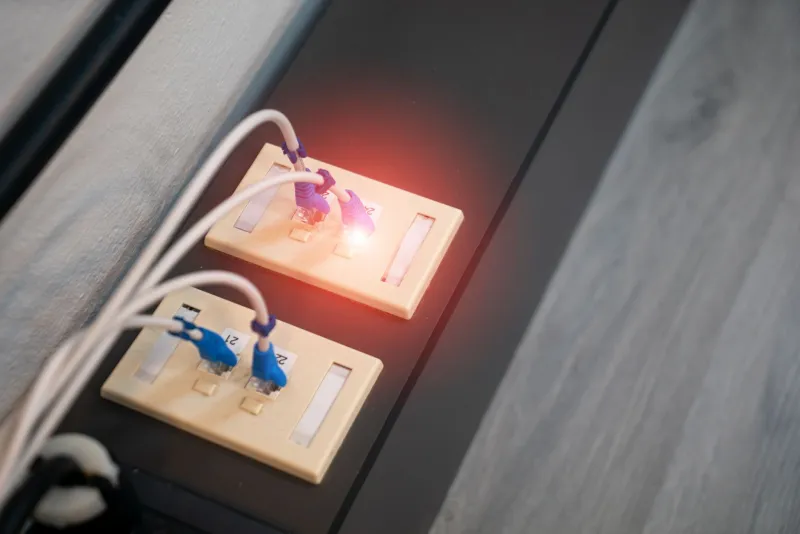
That cable running from your modem to your router might have come home with equipment you bought a decade ago. Cat5 cables, and even many older Cat5e runs, top out at 100 Mbps or degrade over distance. If you're paying for 500 Mbps and your wired test shows 94 Mbps — a suspiciously familiar number — you're almost certainly looking at a 100 Mbps link negotiating at its ceiling.
Check the printing on the cable jacket itself. "CAT5E" supports gigabit speeds reliably; "CAT5" does not. Replacing a few cables costs under $20 and may recover hundreds of megabits.
2. A Port Stuck in Half-Duplex Mode
Duplex mismatches are an old networking problem that still shows up in home networks. When a router port and the device it's connected to disagree about whether they can send and receive simultaneously, throughput collapses and errors spike. Symptoms include wired speeds far below expectations and intermittent stuttering.
In your router's admin panel, look under LAN or port settings. Most consumer routers auto-negotiate by default — confirm it hasn't been changed to a forced "100 Mbps half-duplex" or similar setting. If a specific port consistently underperforms, test the device on a different port before blaming the hardware.
3. Outdated Wi-Fi Security Is Taxing Your Throughput
Here's a detail many homeowners never encounter: older wireless security modes can limit connection speeds. WEP and WPA (as opposed to WPA2/WPA3) date from eras when encryption had to accommodate much slower hardware, and some routers cap or degrade performance on networks configured with legacy security. WPA3's transition mode can also cause older devices to connect in ways that limit throughput.
Open your wireless settings and confirm WPA2-Personal (AES) or WPA3 is selected. If you're still running WEP — perhaps to accommodate an ancient device — you're sacrificing both speed and security simultaneously.
4. Your Router's Wi-Fi Bandwidth Settings Are Set Conservatively
Routers ship with settings tuned for maximum compatibility, not maximum speed. Check two items in your admin panel:
- Channel width. If your 5 GHz radio is set to 20 MHz instead of 40/80 MHz, you're using a fraction of the available throughput. Widen it unless you live in a dense apartment building where narrower channels reduce interference.
- Wireless mode. If the router is set to a legacy mode ("802.11n only" or a mixed mode weighted toward old standards), newer devices can't reach their potential. "802.11ac/ax mixed" or the equivalent is the right choice for most homes.
5. Old Firmware and Overloaded Hardware
A router running firmware from three years ago may be suffering from known performance bugs — manufacturers routinely fix throughput and stability issues in updates. Check for updates before anything else; it takes five minutes and costs nothing.
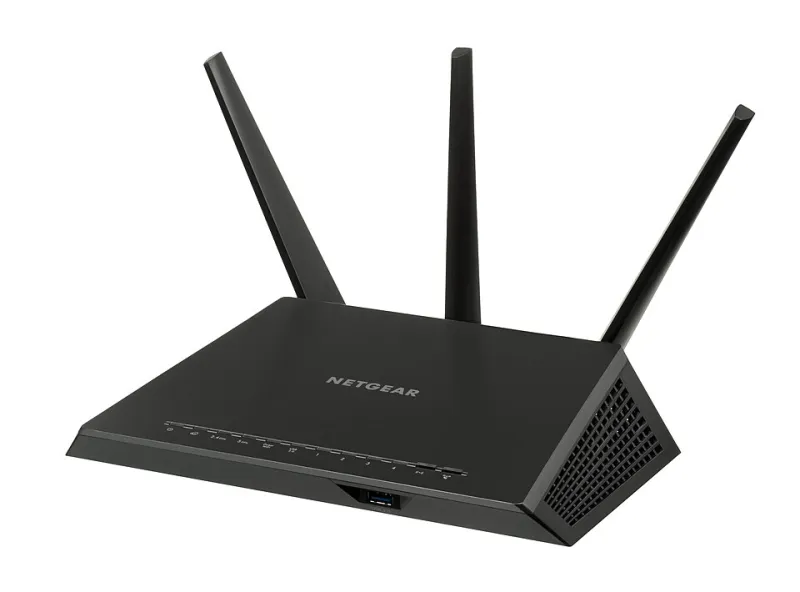
Beyond firmware, consider the router's raw capability. A router marketed in 2016 for "gigabit speed" may have a processor that buckles when handling gigabit traffic with quality-of-service features enabled. If wired speeds fall short of your plan even with fresh cables and current firmware, the hardware itself is the bottleneck — and that's the only scenario where a new router makes more sense than a new plan.
Do the Math Before the Upsell
Run your wired test. If you're getting 300 Mbps on a 300 Mbps plan, upgrading to a 600 Mbps plan while your router delivers 300 over Wi-Fi means paying double for speed you'll never touch. Fix the five items above first. The monthly savings from skipping an unnecessary upgrade will usually buy you better cables, a firmware afternoon, and — if the hardware truly is the limit — a better router within a year, all while keeping the plan you already have.