After the Lights Flicker Back: Restoring Your Home Network the Right Way Following a Power Cut
Across tornado-prone Oklahoma, hurricane-exposed Florida, and ice-storm country in Texas and New England, the pattern repeats every storm season: the power comes back on, the refrigerator hums, the lights work — and the internet doesn't. Homeowners power-cycle their equipment in a panic, often making the situation worse. Understanding why outages disrupt networking gear, and how to recover in the right order, can turn an hour of frustration into five minutes of methodical fixes.
Why Power Cuts Confuse Your Network Equipment
Routers and modems are small computers, and like any computer, they expect a clean startup. A sudden loss of power mid-operation can corrupt temporary configuration data, leave the device's memory in an inconsistent state, or — in the case of some modems — cause the device to re-register with your ISP in a way that doesn't complete properly.
Compounding the problem, when utility power returns, it often does so in stages. Voltage can fluctuate or "brown out" before stabilizing. Equipment that boots during this unstable window may hang, crash, or behave erratically. Cable modems are particularly sensitive: after an extended outage, they sometimes need extra time to re-establish communication with the provider's headend equipment before they'll pass traffic.
There's also the neighborhood factor. In a cable internet area, your modem negotiates bandwidth with shared infrastructure serving dozens of homes. When every household on the node reboots simultaneously, the upstream can get congested or individual modems can fail their initial handshake.
The Correct Restart Sequence
Resist the urge to flip everything on at once. Order matters because each device needs to establish its connection before the next one depends on it.
- Unplug everything. Modem, router, and any mesh satellites or network switches. Wait a full 60 seconds. This drains residual power and clears volatile memory.
- Power the modem first, alone. Plug it in and wait for its status lights to settle — typically two to five minutes. On most cable modems, you're looking for a solid "online" or "downstream/upstream" indicator. Fiber equipment (ONTs) usually shows a stable optical signal light. Patience here is the step most people skip.
- Power the router next. Once the modem is fully online, start the router and give it two to three minutes to boot and hand out IP addresses.
- Restart one device and test. Connect a phone or laptop and confirm internet access before adding anything else back.
- Bring remaining equipment online gradually — switches, mesh nodes, then smart home devices, which often reconnect in a staggered fashion on their own.
Common Post-Outage Problems and Their Fixes
Lights Are On, But No Internet
If the modem's lights look normal but nothing loads, the issue may be on the ISP's side, not yours. After major storms, providers like Comcast, Spectrum, and AT&T often experience regional outages that persist after power restoration. Check your provider's outage map or app before further troubleshooting.
The Router Lost Its Settings
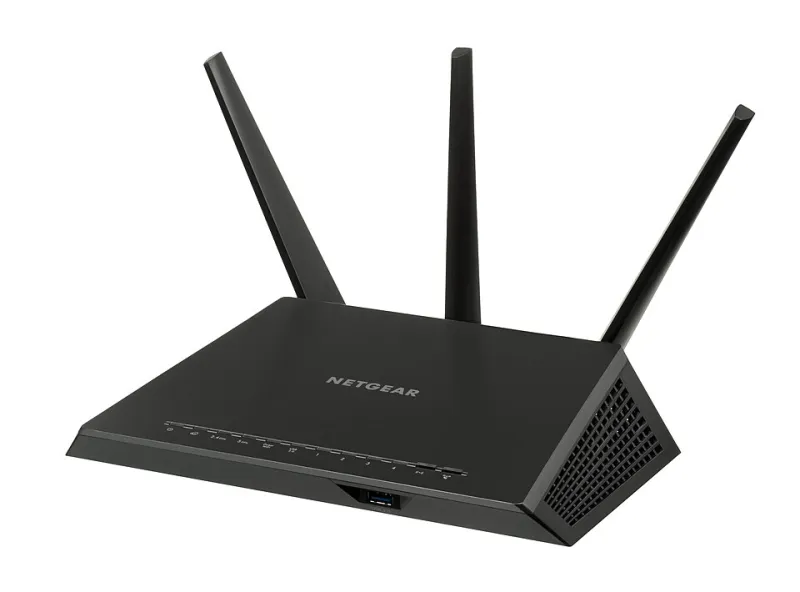
Occasionally, an outage during a firmware operation or configuration write can reset a router to factory defaults. If your Wi-Fi network name has reverted to something like "Netgear" or "Linksys," that's what happened. You'll need to reconnect using the default credentials printed on the device and reconfigure your settings — one more reason to keep a written record of your network name, password, and key settings.
The "IP Conflict" Error
When everything boots simultaneously, two devices occasionally grab the same local IP address, producing connectivity errors on one machine. Rebooting the affected device — or the router, which reassigns addresses via DHCP — usually resolves it.
Everything Works Except One Device
Smart plugs, thermostats, and security cameras are notorious for failing to reconnect after outages. A manual power cycle of the device itself, rather than the network, is typically all that's needed.
A Small UPS: Cheap Insurance for Your Network
An uninterruptible power supply — a battery backup unit — costs between $60 and $120 for a basic model and can keep a modem and router running for one to four hours. That's often long enough to ride out a brief blackout entirely, or at least to shut equipment down cleanly rather than letting it crash.
When shopping, look for a unit with automatic voltage regulation (AVR), which smooths out the brownouts that frequently accompany storm-restored power. Plug only the modem, router, and perhaps one computing device into the battery outlets; printers and monitors draw too much power to be worth it. Test the unit twice a year, and replace the battery every three to five years.
Storm season will come whether you're ready or not. A printed restart checklist taped inside a closet door and a modest UPS on the shelf turn the post-outage scramble into a routine — and keep your household online while the neighbors are still unplugging things at random.